Add required components
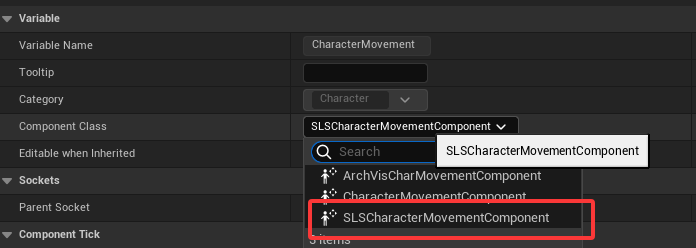
Change the component class of CharacterMovementComponent to SLSCharacterMovementComponent
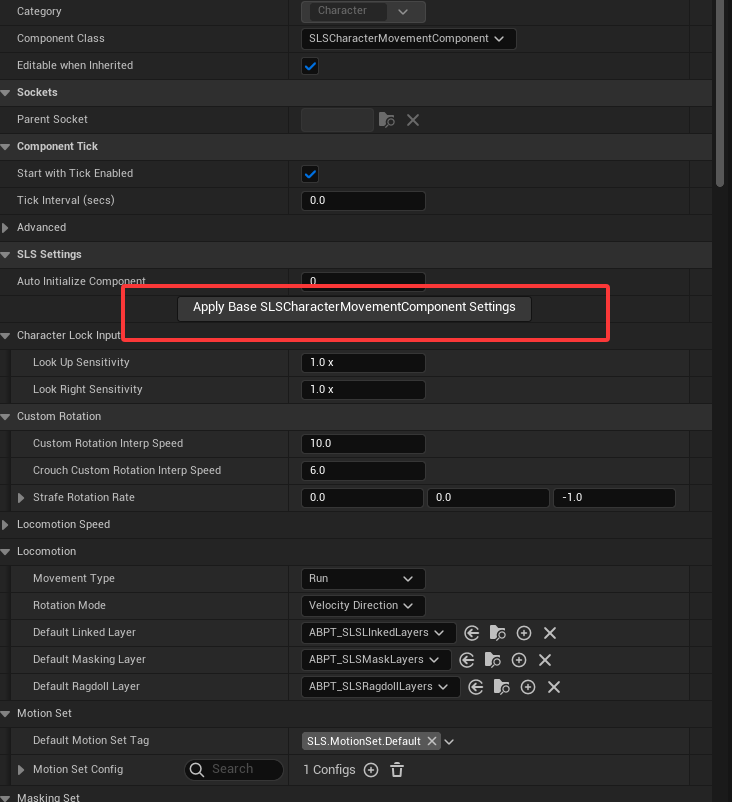
Find the “Apply Base SLSCharacterMovementComponent Settings” button under SLS Settings to apply the initial settings.
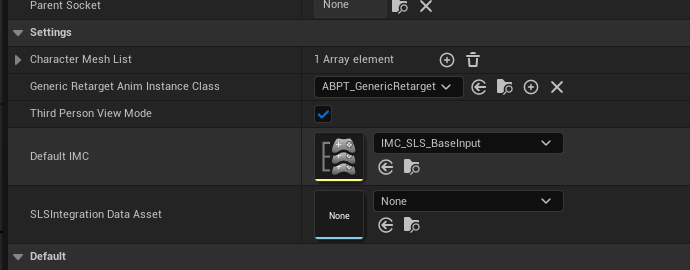
Add the AC_SLSIntegration component to add all module integration support, and in the component details panel, modify the dataset (SLS Integration Data Asset) and add configuration.
Important Note: AC_SLSIntegration is a C++ Integration Blueprint component.
In C++, the components of the configuration are initialized according to various configurations.
In Blueprint, basic movement data related events and local switching redirection character configuration processing have been added.
Configuring integrated data assets
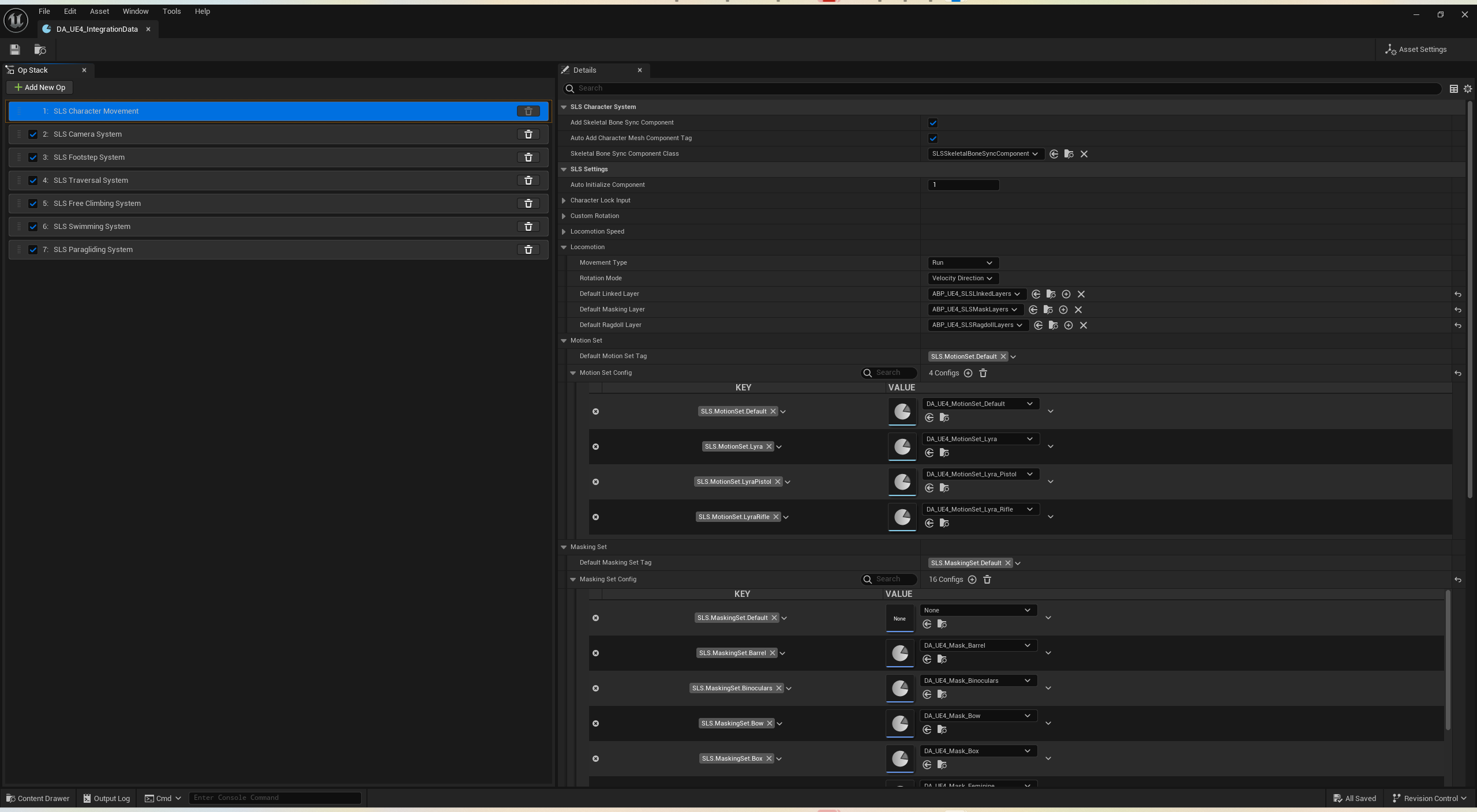
In the data asset, which includes a list on the left and a details panel on the right, SLS Character Movement is required, while the others are optional. You can disable (checkbox on the left) or remove other support as needed.
Configuring the Main Animation Blueprint
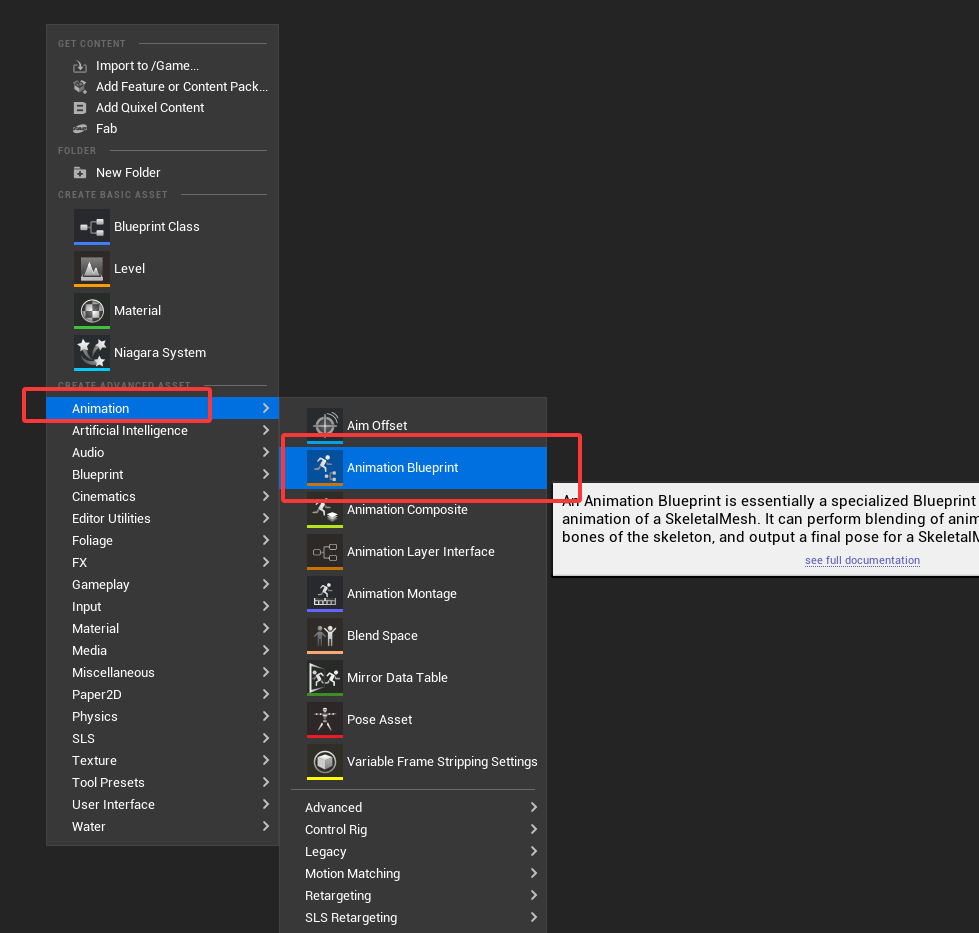
You can create a new Animation Blueprint by right-clicking in the Content Browser panel and selecting Animation / Animation Blueprint.
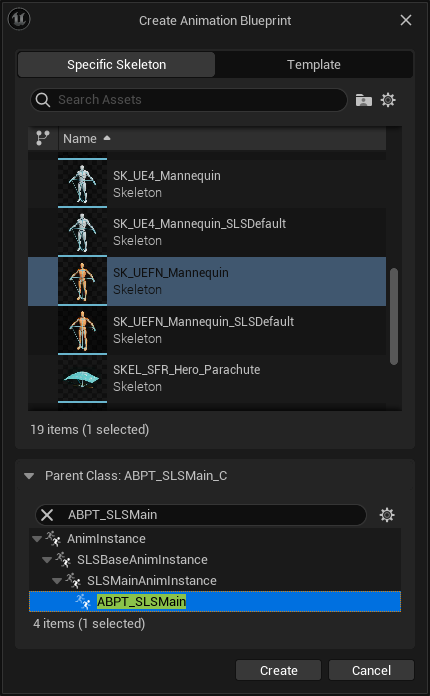
The skeletal mesh is your character skeleton, the animation class is ABPT_SLSMain, and then create it.
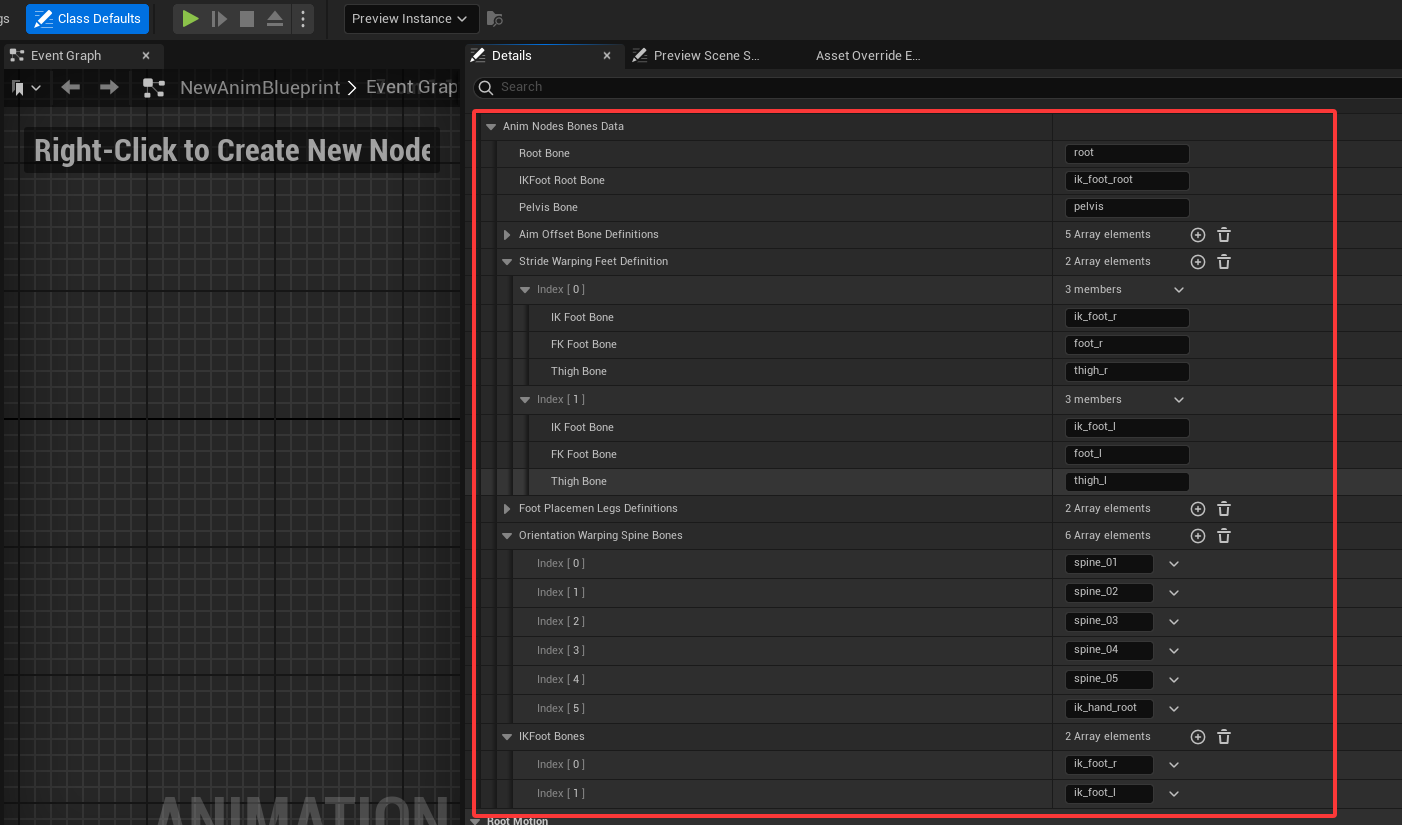
Then, configure the Animation Blueprint to the Mesh in your character Blueprint. If your character's skeleton tree differs from UE's standard skeleton tree, you'll need to modify some of the bone name configurations in the Animation Blueprint to make it compatible with your skeleton:
Comments
Share your thoughts and discuss with everyone