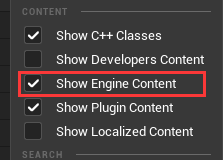
You can refer to my default Data Asset configuration. If you cannot see it in the drop-down box, you can enable this option
Create a new Data Asset
You have two ways
One is to create through a Data Asset.
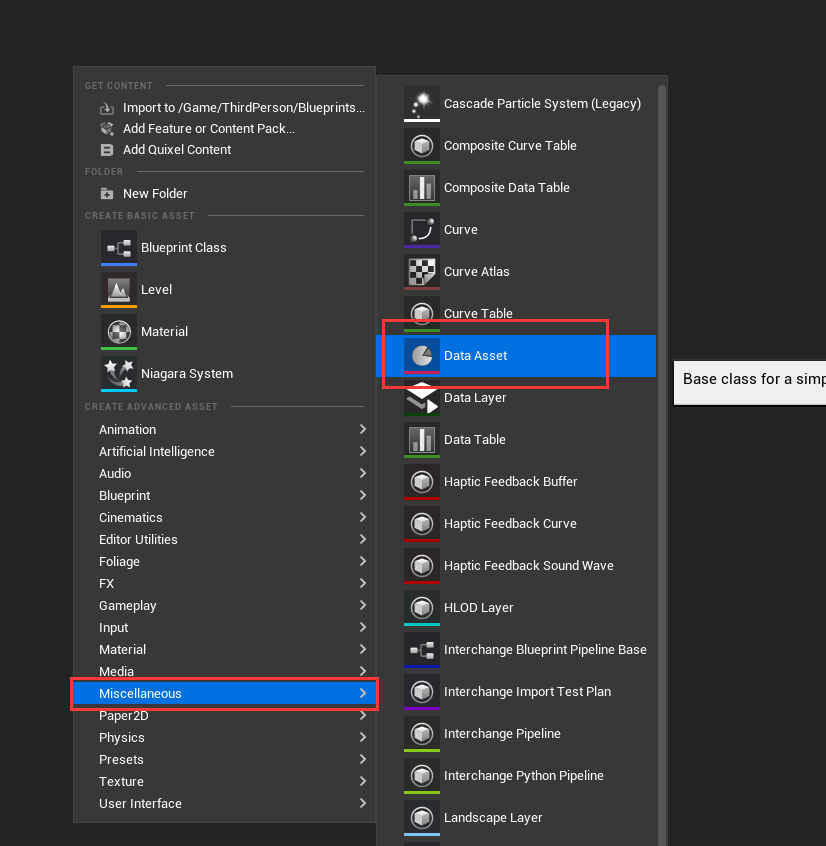
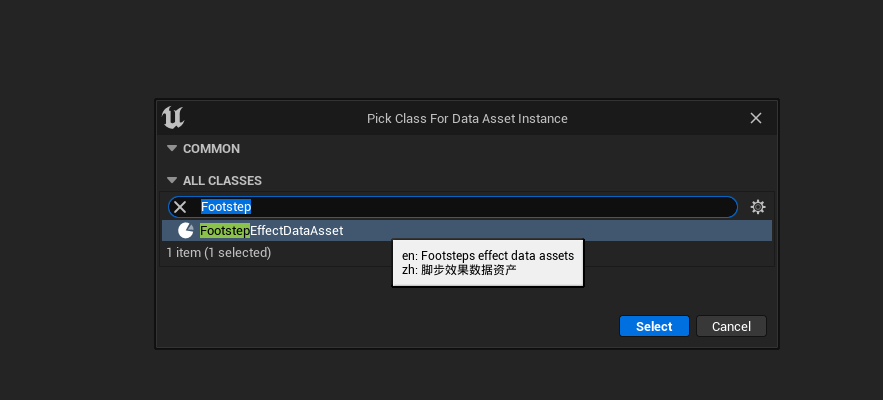
The other is to create through the right-click menu
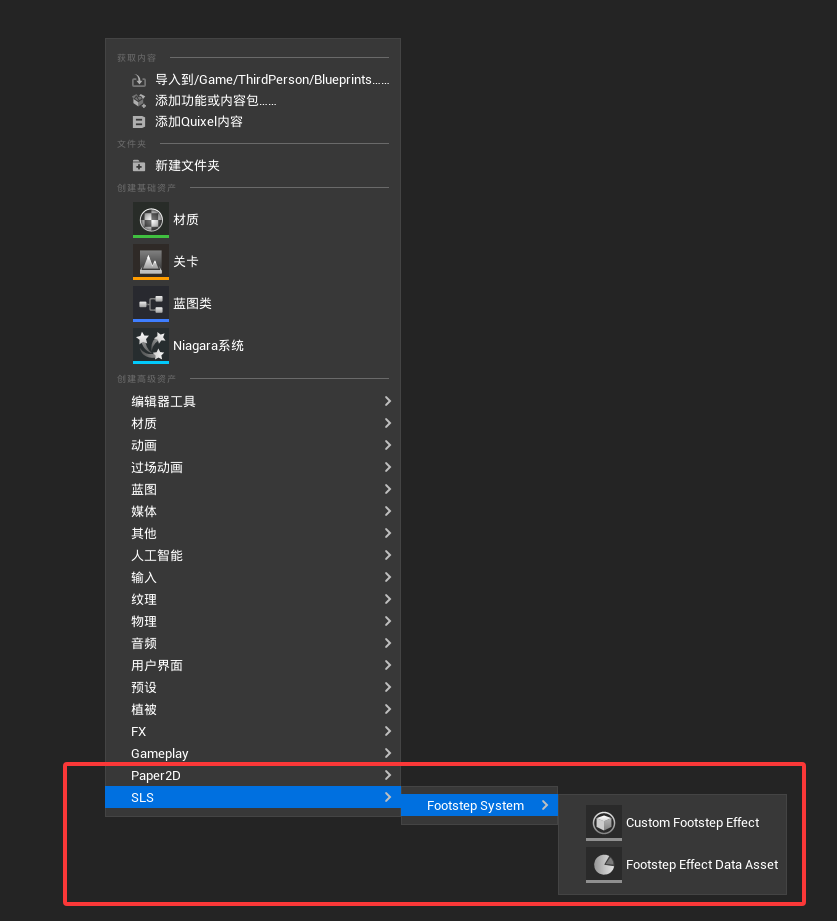
There are two options in the right-click menu,
Footstep Effect Data Asset is a Data Asset.
Custom Footstep Effect is a custom footstep effect. You can implement custom effects as needed.
The editor interface was updated in V3.5
to configure footstep effects in a more intuitive way, as shown below:
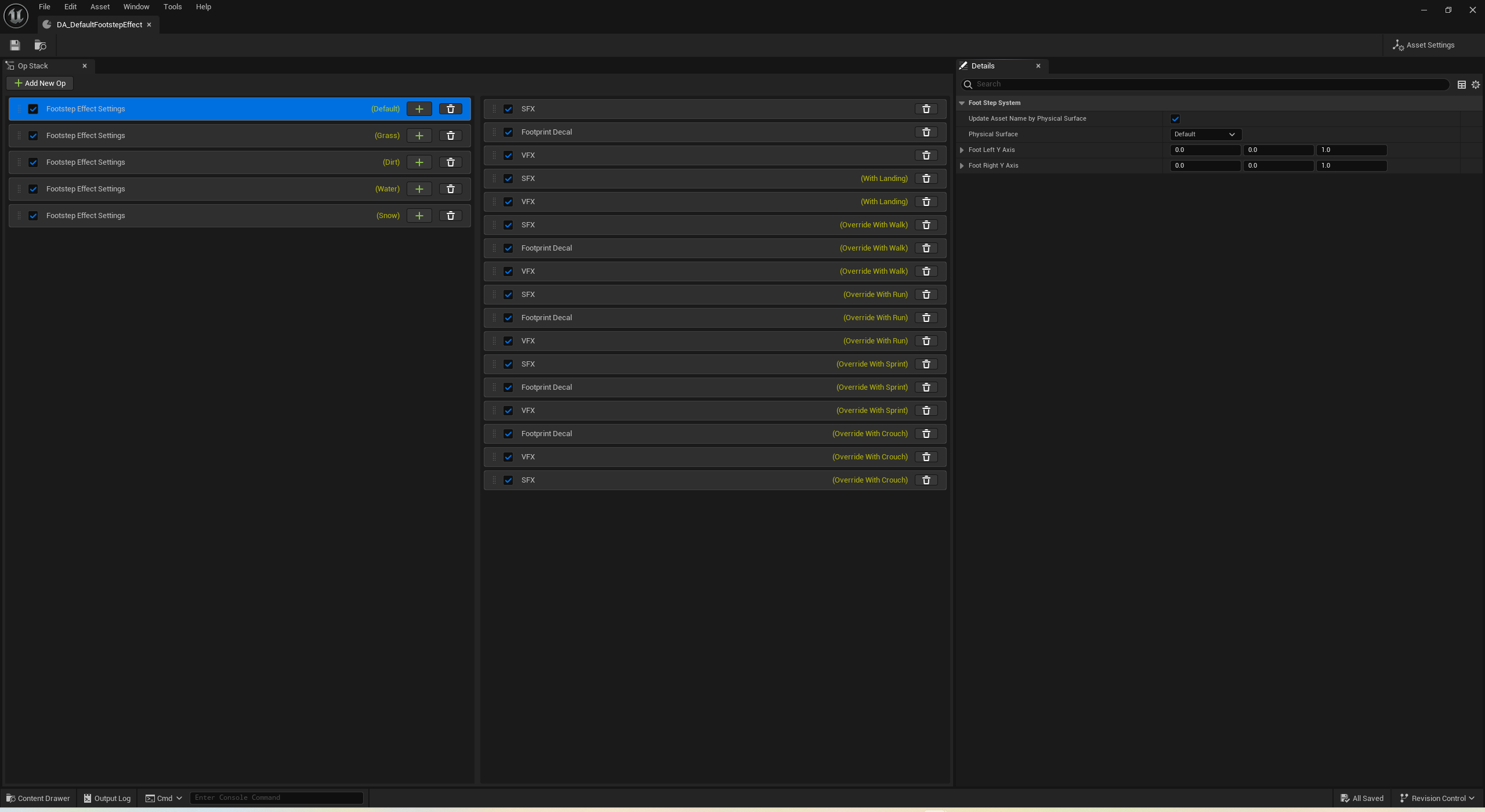
The far right is the Details Panel. The list on the left contains effect settings for different physical surface types. The middle list contains the specific content of the effect settings for the physical surface specified on the left. The system includes 3 built-in effects: sound (SFX), VFX, and footprint decals,(All configuration data is struct data!) In addition, a custom effect has also been added.
Custom footstep effect in V3.5
This is a UObject Blueprint object
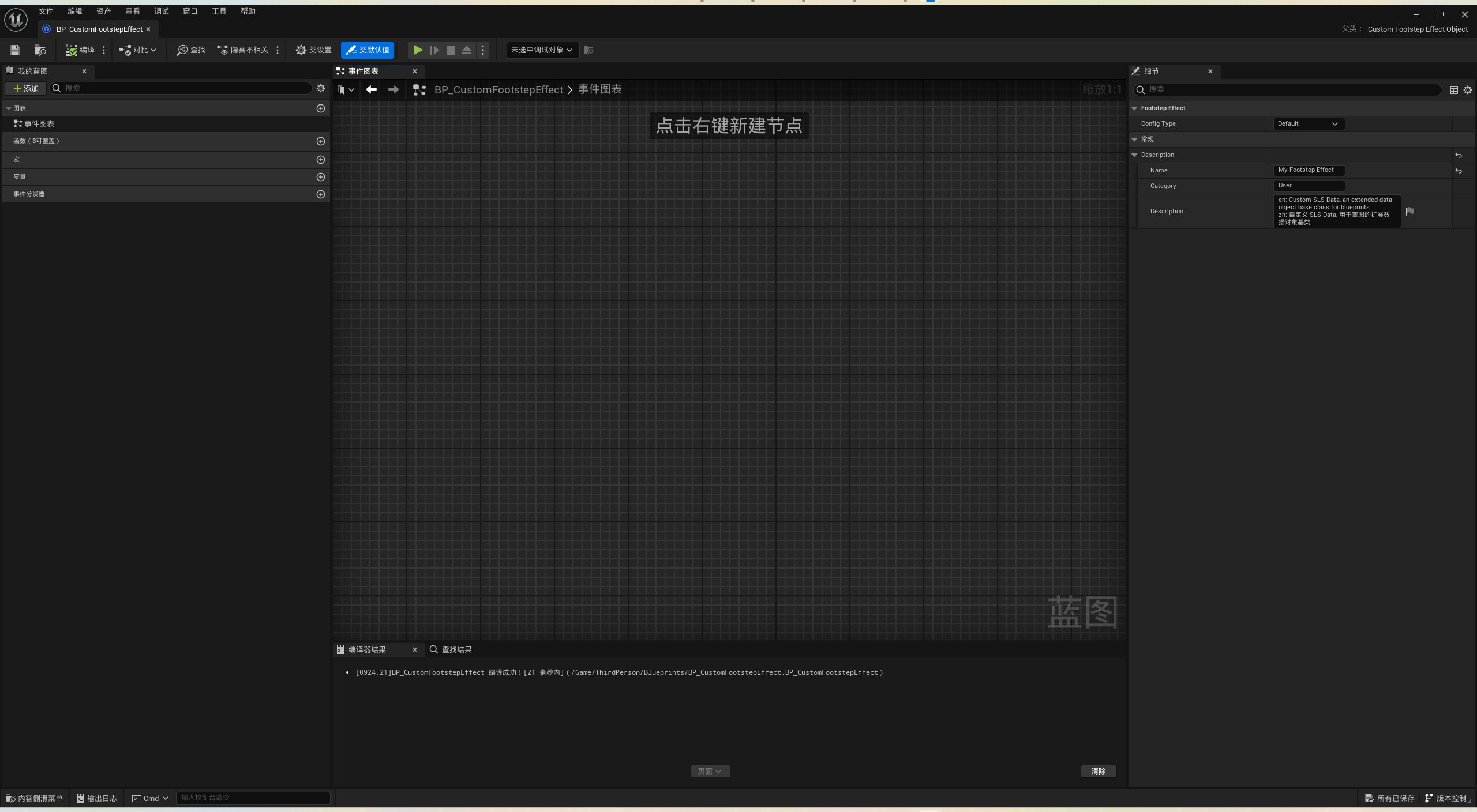
In the property panel on the right, you can edit the default configuration type, display name, category, description, and other content. This object has three overloaded functions:
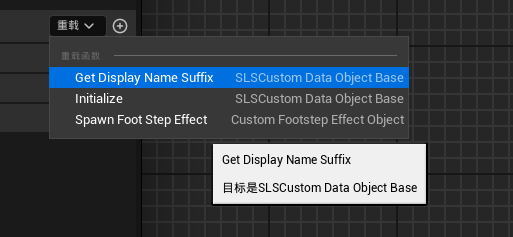
Spawn Foot Step Effect: This is the function you need to care about more. It is executed when the effect is triggered.
Initialize: Initialization function (may not be needed).
Get Display Name Suffix: The content displayed in the Data Asset editor (the yellow text part).
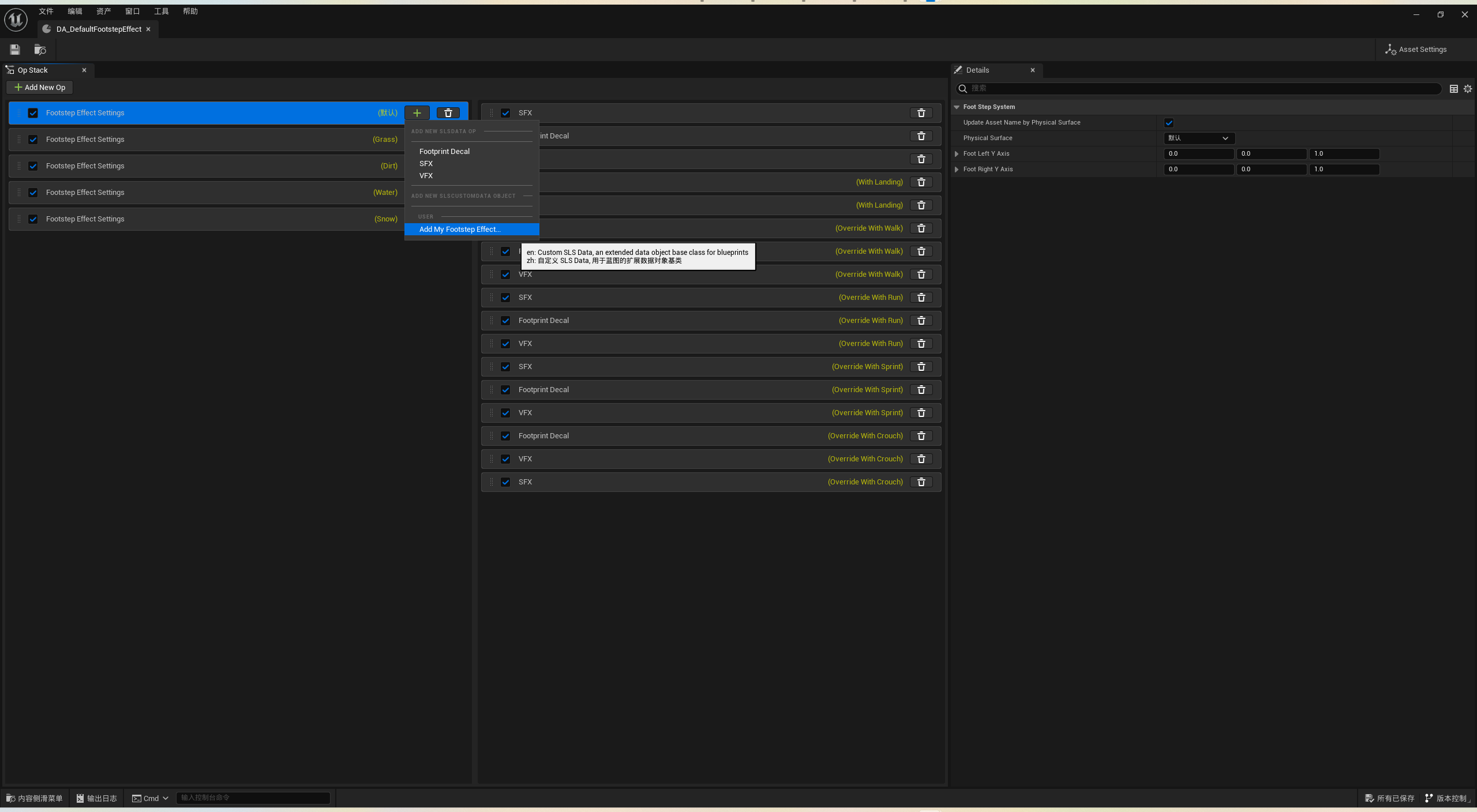
After you finish editing, you can add it here:
Legacy content (will be deprecated in future versions.)
In the Data Asset content, you can see the following options:
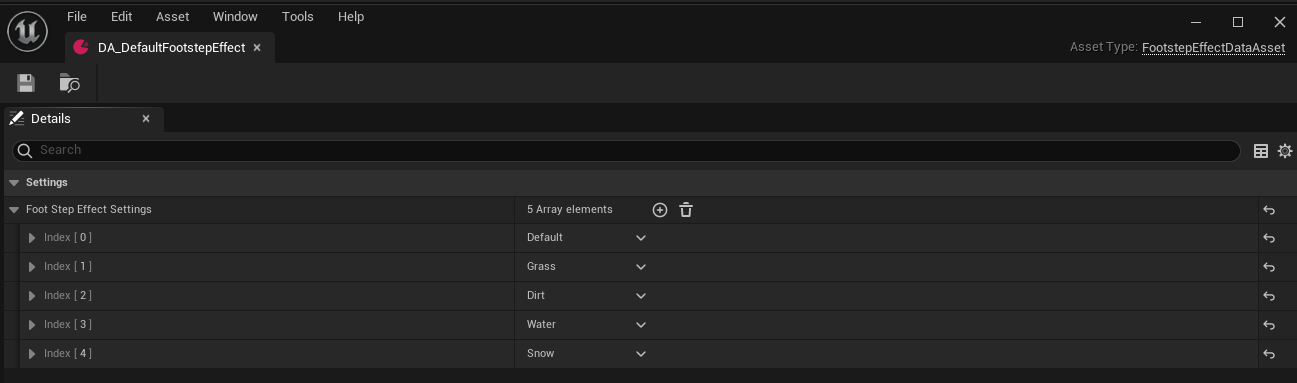
FootstepEffectSettings, this is the specific footstep effect data configured to trigger based on physical surface type. For the first variable in the footstep effect list:
PhysicalSurface: Surface Type (which physical surface this effect configuration applies to)
For physical surface types, you need to configure your own physical surface types in project settings->Physics->Physical Surface.
Comments
Share your thoughts and discuss with everyone